12.WPF动画

12.WPF动画
步步为营DotNet
发布于 2026-06-17 09:06:33
发布于 2026-06-17 09:06:33
12.WPF动画
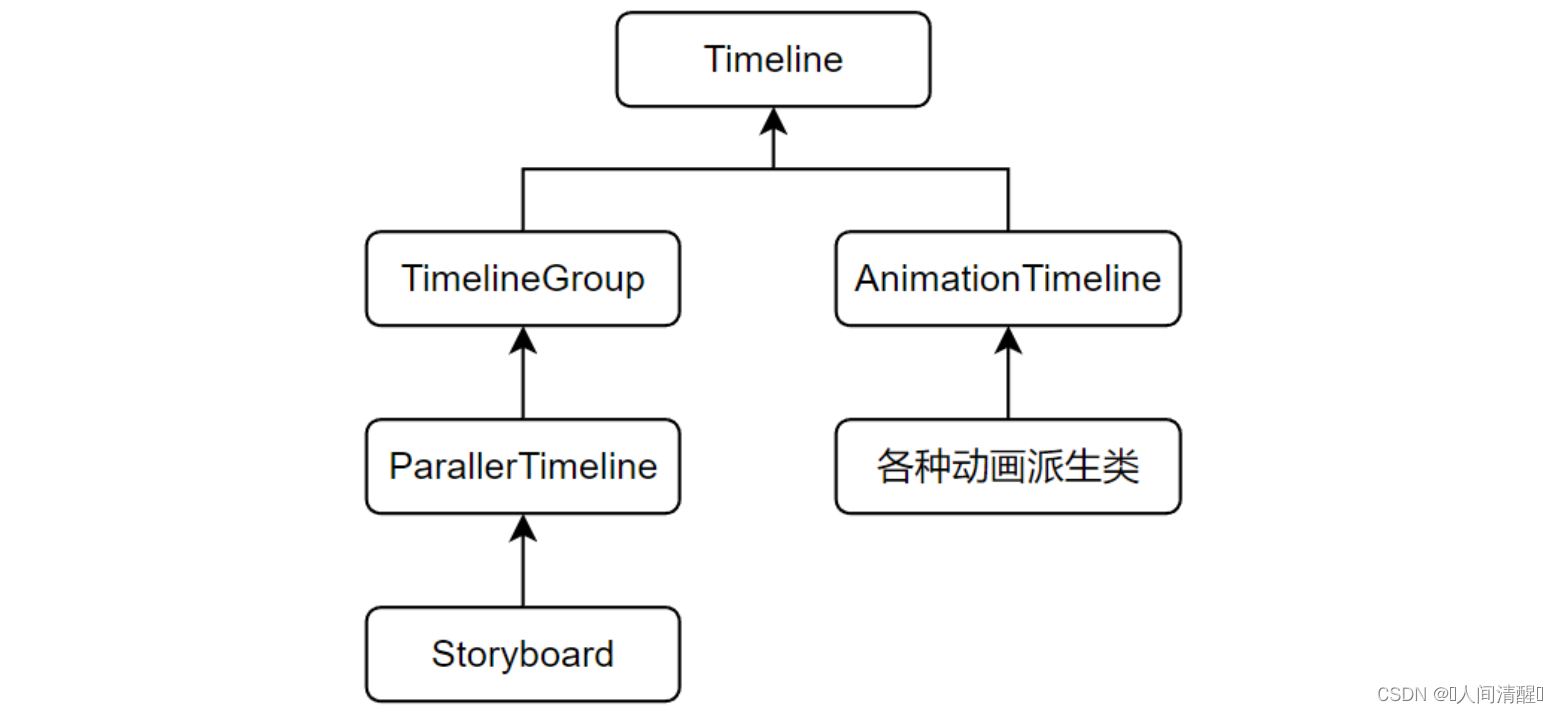
动画的就是在UI元素上施加一些Timeline实例。WPF把简单的动画称为AnimationTimeline,复杂的动画称为Storyboard。
简单的独立动画
简单线性动画
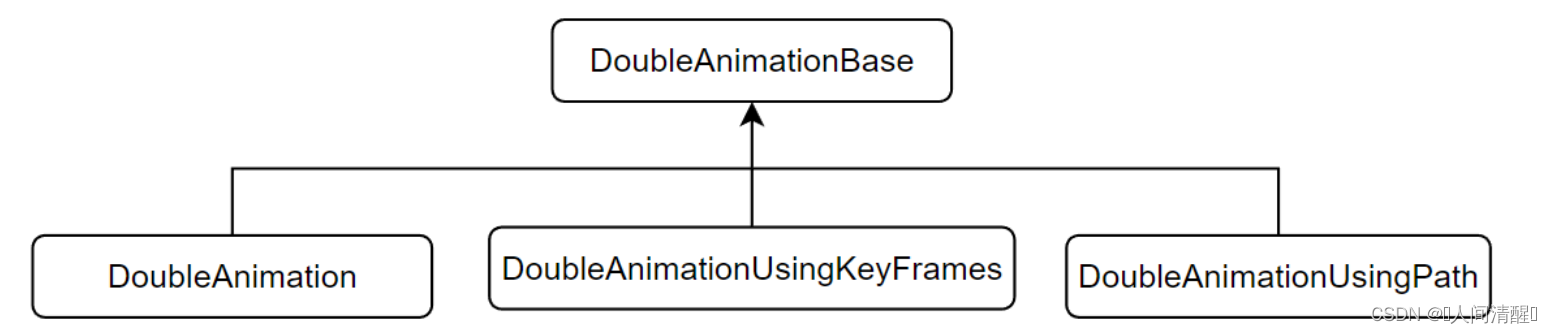
WPF中动画系统中Dloble类型的属性用的最多,所以以DoubleAnimationBase为例
- 变化时间(Duration):必须制定,类型为Duration
- 变化终点(To):如果没有指定,采用上一次动画的终点或者默认值
- 变化幅度(By):如果指定了变化终点,变化幅度将被忽略
- 变化起点(From):如果没有指定变化起点,则以变化目标的属性当前值为起点
<Grid>
    <Button Width="80" Height="80" HorizontalAlignment="Left" VerticalAlignment="Top" Click="Button_Click">
        <Button.RenderTransform>
            <TranslateTransform X="0" Y="0" x:Name="tt"></TranslateTransform>
        </Button.RenderTransform>
    </Button>
</Grid>
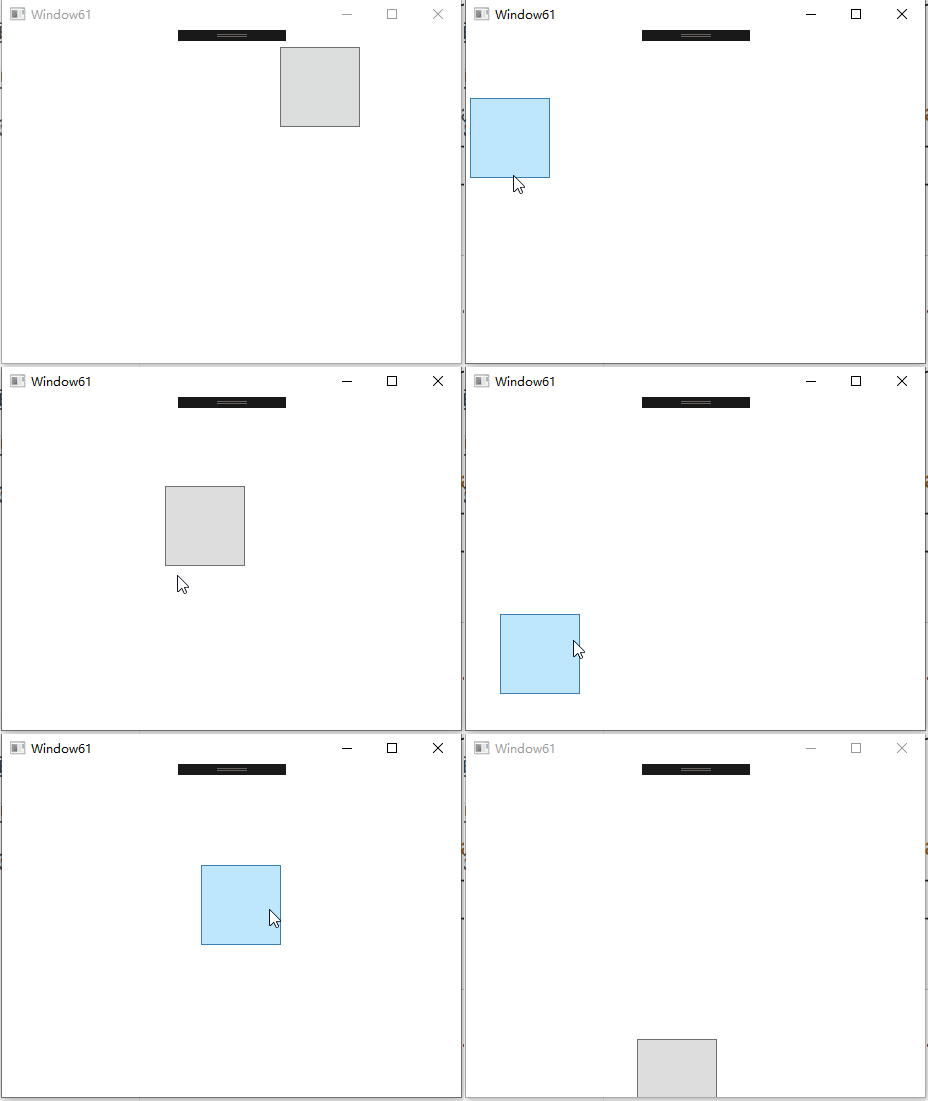
改变TranslateTransform对象X,Y的属性就会让Button的显示位置(非实际位置)改变
private void Button_Click(object sender, RoutedEventArgs e)
{
    DoubleAnimation daX = new DoubleAnimation();
    DoubleAnimation daY = new DoubleAnimation();
    //指定起点
    daX.From = 0;
    daY.From = 0;
    //指定终点
    Random r = new Random();
    daX.To = r.NextDouble() * 300;
    daY.To = r.NextDouble() * 300;
    //指定时长
    Duration duration = new Duration(TimeSpan.FromMilliseconds(300));
    daX.Duration = duration;
    daY.Duration = duration;
    //动画主体是TranslateTransform变形,而不是Button
    this.tt.BeginAnimation(TranslateTransform.XProperty, daX);
    this.tt.BeginAnimation(TranslateTransform.YProperty, daY);
}
高级动画控制
除了From、To等属性还具有一下高级属性
属性 | 描述 |
|---|---|
AccelerationRatio | 加速度,0-1且与DecelerationRatio和不大于1 |
DecelerationRatio | 减速度,0-1且与DecelerationRatio和不大于1 |
SpeedRatio | 快进和慢进 |
AutoReverse | 倒放 |
RepeatBehavior | 重复,0为不播放,n为播放n次。RepeatBehavior.Forever为循环 |
BeginTime | 播放前等待时间 |
EasingFunction | 缓冲式渐变 |
只需在上面的代码中加入
BounceEase be = new BounceEase();
be.Bounces = 3;//弹跳3次
be.Bounciness = 3;//弹跳程度,值越大反弹越低
daY.EasingFunction = be;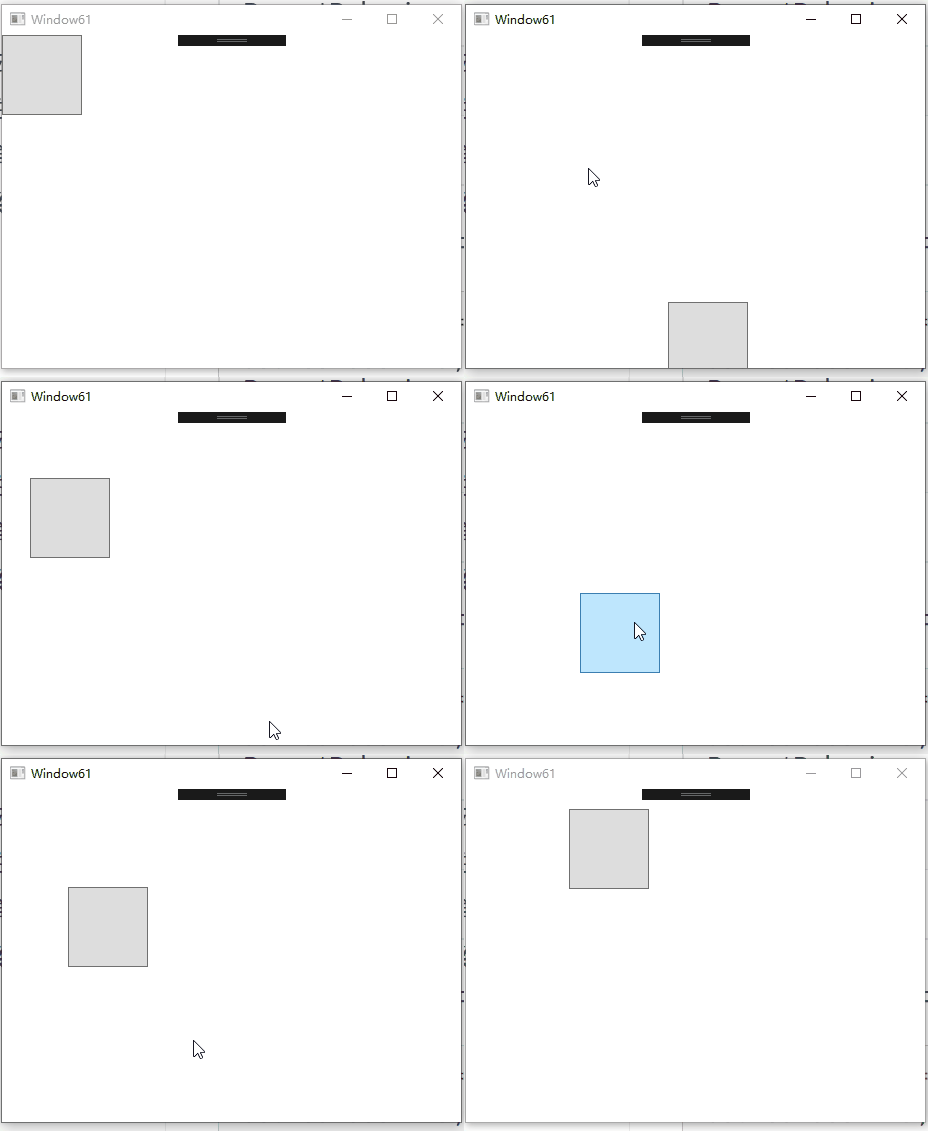
关键帧
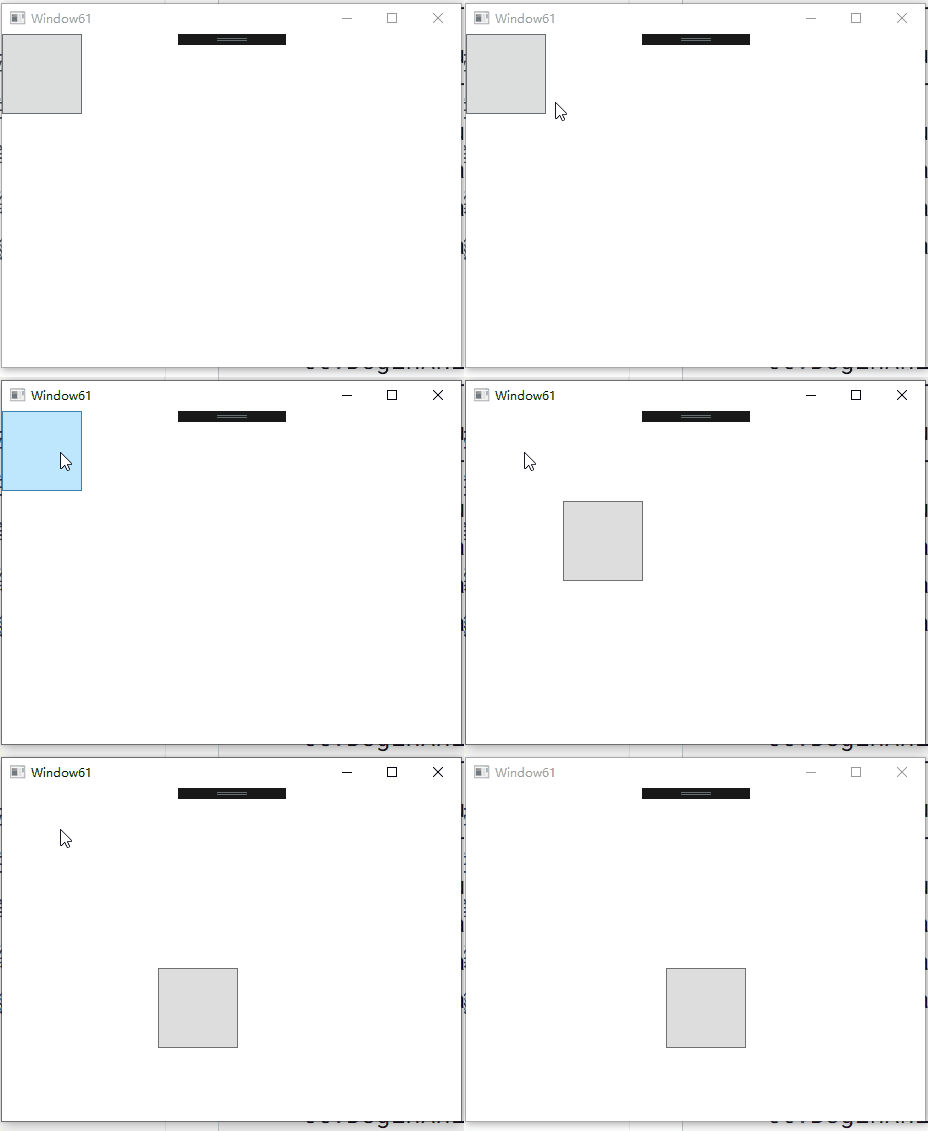
将上面案例的Button设置按照Z字型移动
private void Button_Click(object sender, RoutedEventArgs e)
{

    DoubleAnimationUsingKeyFrames dakX = new DoubleAnimationUsingKeyFrames();
    DoubleAnimationUsingKeyFrames dakY = new DoubleAnimationUsingKeyFrames();

    //设置动画总时长
    dakX.Duration = new Duration(TimeSpan.FromMilliseconds(900));
    dakY.Duration = new Duration(TimeSpan.FromMilliseconds(900));
    //创建,添加关键帧
    LinearDoubleKeyFrame x_kf_1 = new LinearDoubleKeyFrame();
    LinearDoubleKeyFrame x_kf_2 = new LinearDoubleKeyFrame();
    LinearDoubleKeyFrame x_kf_3 = new LinearDoubleKeyFrame();
    x_kf_1.KeyTime = KeyTime.FromPercent(0.33);
    x_kf_1.Value = 200;
    x_kf_2.KeyTime = KeyTime.FromPercent(0.66);
    x_kf_2.Value = 0;
    x_kf_3.KeyTime = KeyTime.FromPercent(1);
    x_kf_3.Value = 200;
    dakX.KeyFrames.Add(x_kf_1);
    dakX.KeyFrames.Add(x_kf_2);
    dakX.KeyFrames.Add(x_kf_3);

    LinearDoubleKeyFrame y_kf_1 = new LinearDoubleKeyFrame();
    LinearDoubleKeyFrame y_kf_2 = new LinearDoubleKeyFrame();
    LinearDoubleKeyFrame y_kf_3 = new LinearDoubleKeyFrame();
    y_kf_1.KeyTime = KeyTime.FromTimeSpan(TimeSpan.FromMilliseconds(300));
    y_kf_1.Value = 0;
    y_kf_2.KeyTime = KeyTime.FromTimeSpan(TimeSpan.FromMilliseconds(600));
    y_kf_2.Value = 180;
    y_kf_3.KeyTime = KeyTime.FromTimeSpan(TimeSpan.FromMilliseconds(900));
    y_kf_3.Value = 180;
    dakY.KeyFrames.Add(y_kf_1);
    dakY.KeyFrames.Add(y_kf_2);
    dakY.KeyFrames.Add(y_kf_3);

    //执行动画
    tt.BeginAnimation(TranslateTransform.XProperty, dakX);
    tt.BeginAnimation(TranslateTransform.YProperty, dakY);
}
路径动画
让目标沿着给定的路径移动,使用DoubleAnimationUsingPath,需要一个PathGeometry来指定路径,PathGeometry的另一个重要属性是Source,枚举值为X\Y\Angle,例如Angle则表示关注曲线上每一点处切线方向的变化。
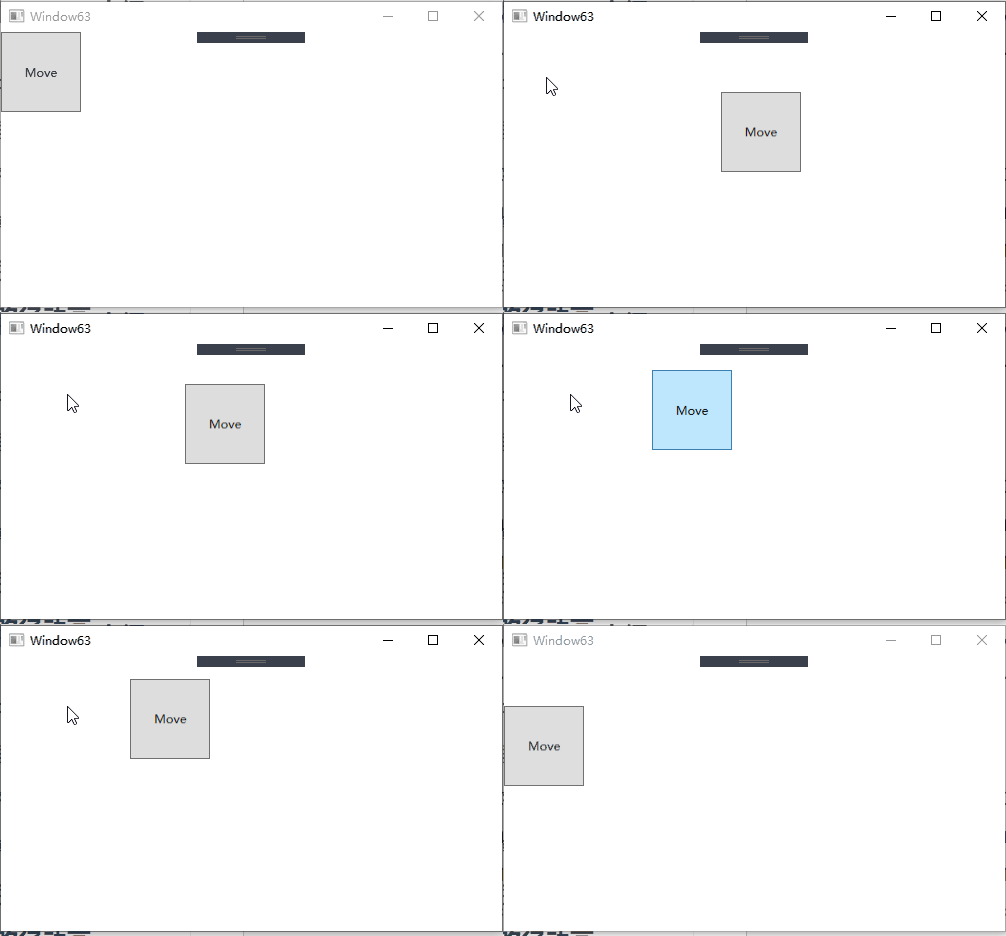
实例:让一个Button沿着路径移动
<Grid x:Name="layoutRoot">
    <Grid.Resources>
        <!--移动路径-->
        <PathGeometry x:Key="movePath" Figures="M 0,50 C 300,-100 300,400 600,120"></PathGeometry>
    </Grid.Resources>
    <Button Content="Move" Width="80" Height="80" HorizontalAlignment="Left" VerticalAlignment="Top" Click="Button_Click">
        <Button.RenderTransform>
            <TranslateTransform X="0" Y="0" x:Name="tt"></TranslateTransform>
        </Button.RenderTransform>
    </Button>
</Grid>private void Button_Click(object sender, RoutedEventArgs e)
{
//从XAML代码中获取移动路径数据
PathGeometry pg = this.layoutRoot.FindResource("movePath") as PathGeometry;
Duration duration = new Duration(TimeSpan.FromMilliseconds(600));
//创建动画
DoubleAnimationUsingPath dpX = new DoubleAnimationUsingPath();
dpX.Duration = duration;
dpX.PathGeometry = pg;
dpX.Source = PathAnimationSource.X;
DoubleAnimationUsingPath dpY = new DoubleAnimationUsingPath();
dpY.Duration = duration;
dpY.PathGeometry = pg;
dpY.Source = PathAnimationSource.Y;
dpX.AutoReverse = true;
dpX.RepeatBehavior = RepeatBehavior.Forever;
dpY.AutoReverse = true;
dpY.RepeatBehavior = RepeatBehavior.Forever;
//执行动画
this.tt.BeginAnimation(TranslateTransform.XProperty,dpX);
this.tt.BeginAnimation(TranslateTransform.YProperty,dpY);
}
场景
场景就是并行执行一组动画,WPF会把一组动画组织在Stroyboard中,安排好它们的协作关系。
制作3个小球执行不同动画的场景
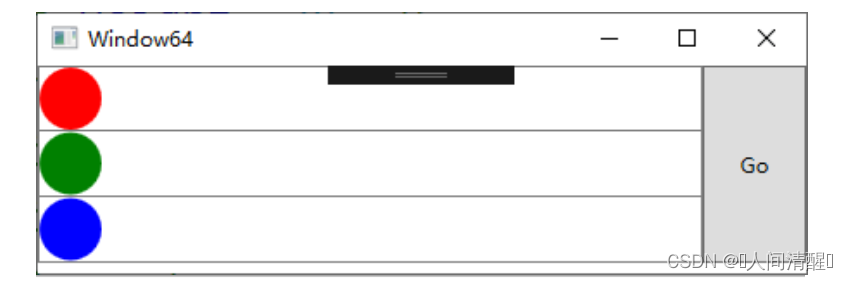
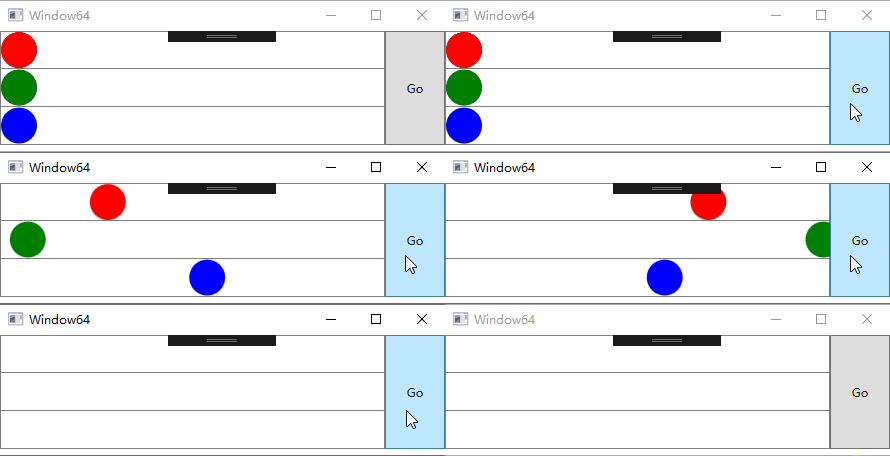
<Window x:Class="WpfApplication1.Window64"
        xmlns="http://schemas.microsoft.com/winfx/2006/xaml/presentation"
        xmlns:x="http://schemas.microsoft.com/winfx/2006/xaml"
        Title="Window64" Height="159" Width="461">
    <Grid>
        <Grid.RowDefinitions>
            <RowDefinition Height="38" />
            <RowDefinition Height="38" />
            <RowDefinition Height="38" />
        </Grid.RowDefinitions>
        <Grid.ColumnDefinitions>
            <ColumnDefinition />
            <ColumnDefinition Width="60" />
        </Grid.ColumnDefinitions>
        <!--跑道(红)-->
        <Border Grid.Row="0" BorderBrush="Gray" BorderThickness="1">
            <Ellipse Width="36" Height="36" Fill="Red" HorizontalAlignment="Left" x:Name="ballR">
                <Ellipse.RenderTransform>
                    <TranslateTransform X="0" Y="0" x:Name="ttR">
                    </TranslateTransform>
                </Ellipse.RenderTransform>
            </Ellipse>
        </Border>
        <!--跑道(绿)-->
        <Border Grid.Row="1" BorderBrush="Gray" BorderThickness="1,0,1,1">
            <Ellipse Width="36" Height="36" Fill="Green" HorizontalAlignment="Left" x:Name="ballG">
                <Ellipse.RenderTransform>
                    <TranslateTransform X="0" Y="0" x:Name="ttG">
                    </TranslateTransform>
                </Ellipse.RenderTransform>
            </Ellipse>
        </Border>
        <!--跑道(蓝)-->
        <Border Grid.Row="2" BorderBrush="Gray" BorderThickness="1,0,1,1">
            <Ellipse Width="36" Height="36" Fill="Blue" HorizontalAlignment="Left" x:Name="ballB">
                <Ellipse.RenderTransform>
                    <TranslateTransform X="0" Y="0" x:Name="ttB">
                    </TranslateTransform>
                </Ellipse.RenderTransform>
            </Ellipse>
        </Border>
        <!--按钮-->
        <Button Content="Go" Grid.RowSpan="3" Grid.Column="1" Click="Button_Click"/>
    </Grid>
</Window>private void Button_Click(object sender, RoutedEventArgs e)
{
Duration duration = new Duration(TimeSpan.FromMilliseconds(600));
//红色小球匀速运动
DoubleAnimation daRx = new DoubleAnimation();
daRx.Duration = duration;
daRx.To = 400;
//绿色小球做变速运动
DoubleAnimationUsingKeyFrames dakGx = new DoubleAnimationUsingKeyFrames();
dakGx.Duration = duration;
SplineDoubleKeyFrame kfg = new SplineDoubleKeyFrame(400,KeyTime.FromPercent(1));
kfg.KeySpline = new KeySpline(1,0,0,1);
dakGx.KeyFrames.Add(kfg);
//蓝色小球变速运动
DoubleAnimationUsingKeyFrames dakBx = new DoubleAnimationUsingKeyFrames();
dakBx.Duration = duration;
SplineDoubleKeyFrame kfb = new SplineDoubleKeyFrame(400,KeyTime.FromPercent(1));
kfb.KeySpline = new KeySpline(0,1,1,0);
dakBx.KeyFrames.Add(kfb);
//创建场景
Storyboard storyBoard = new Storyboard();
Storyboard.SetTargetName(daRx,"ttR");
Storyboard.SetTargetProperty(daRx, new PropertyPath(TranslateTransform.XProperty));
Storyboard.SetTargetName(dakGx, "ttG");
Storyboard.SetTargetProperty(dakGx, new PropertyPath(TranslateTransform.XProperty));
Storyboard.SetTargetName(dakBx, "ttB");
Storyboard.SetTargetProperty(dakBx, new PropertyPath(TranslateTransform.XProperty));
storyBoard.Duration = duration;
storyBoard.Children.Add(daRx);
storyBoard.Children.Add(dakBx);
storyBoard.Children.Add(dakGx);
storyBoard.Begin(this);
storyBoard.Completed += (a, b) => { MessageBox.Show(ttR.X.ToString()); };
}也可以直接使用XAML晚上上面的动画,Stroyboard一般都放在UI元素的Trigger中,Trigger在触发时会执行<BeginStoryboard>标签中的实例。
<Button Content="Go" Grid.RowSpan="3" Grid.Column="1" Click="Button_Click">
    <Button.Triggers>
        <EventTrigger RoutedEvent="Button.Click">
            <BeginStoryboard>
                <Storyboard Duration="0:0:0.6">
                    <!--红色小球动画-->
                    <DoubleAnimation Duration="0:0:0.6" To="400" Storyboard.TargetName="ttR" Storyboard.TargetProperty="X">

                    </DoubleAnimation>
                    <!--绿色小球动画-->
                    <DoubleAnimationUsingKeyFrames Duration="0:0:0.6" Storyboard.TargetProperty="X" Storyboard.TargetName="ttG">
                        <SplineDoubleKeyFrame KeyTime="0:0:0.6" Value="400" KeySpline="1,0,0,1"></SplineDoubleKeyFrame>
                    </DoubleAnimationUsingKeyFrames>
                    <!--蓝色小球动画-->
                    <DoubleAnimationUsingKeyFrames Duration="0:0:0.6" Storyboard.TargetName="ttB" Storyboard.TargetProperty="X">
                        <SplineDoubleKeyFrame KeyTime="0:0:0.6" Value="400" KeySpline="0,1,1,0"></SplineDoubleKeyFrame>
                    </DoubleAnimationUsingKeyFrames>
                </Storyboard>
            </BeginStoryboard>
        </EventTrigger>
    </Button.Triggers>
</Button>
roperty=“X”> </Button.Triggers>
本文参与 腾讯云自媒体同步曝光计划,分享自作者个人站点/博客。
原始发表:2026-06-16,如有侵权请联系 cloudcommunity@tencent.com 删除
目录
腾讯云开发者

Copyright © 2013 - 2026 Tencent Cloud. All Rights Reserved. 腾讯云 版权所有
深圳市腾讯计算机系统有限公司 ICP备案/许可证号:粤B2-20090059  粤公网安备44030502008569号
腾讯云计算(北京)有限责任公司 京ICP证150476号 | 京ICP备11018762号